Trying to log in to your FreeCast account?
Just select your device type below for further instructions.
Computer / Laptop
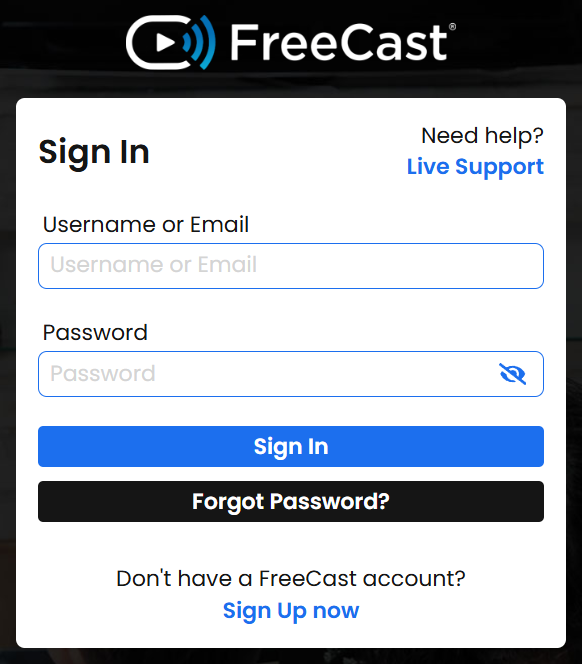
- Open your web browser and go to watch.freecast.com.
- Enter your registered username/email and password for FreeCast - or select Forgot Password? if you don't remember your login information.
- If you're still having trouble logging in, click here.
Smartphone or Tablet
- Open the FreeCast app on your Android or iOS device - If you haven't already installed the app, see the links below.
> FreeCast App for iPhone or iPad
> FreeCast App for Android Device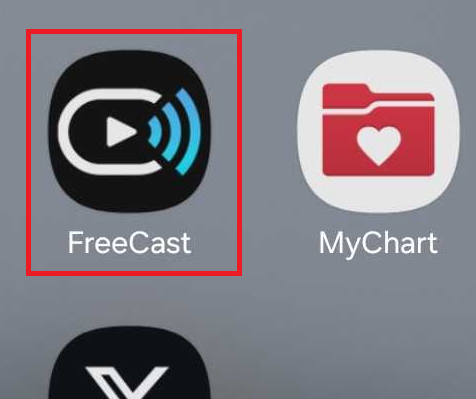
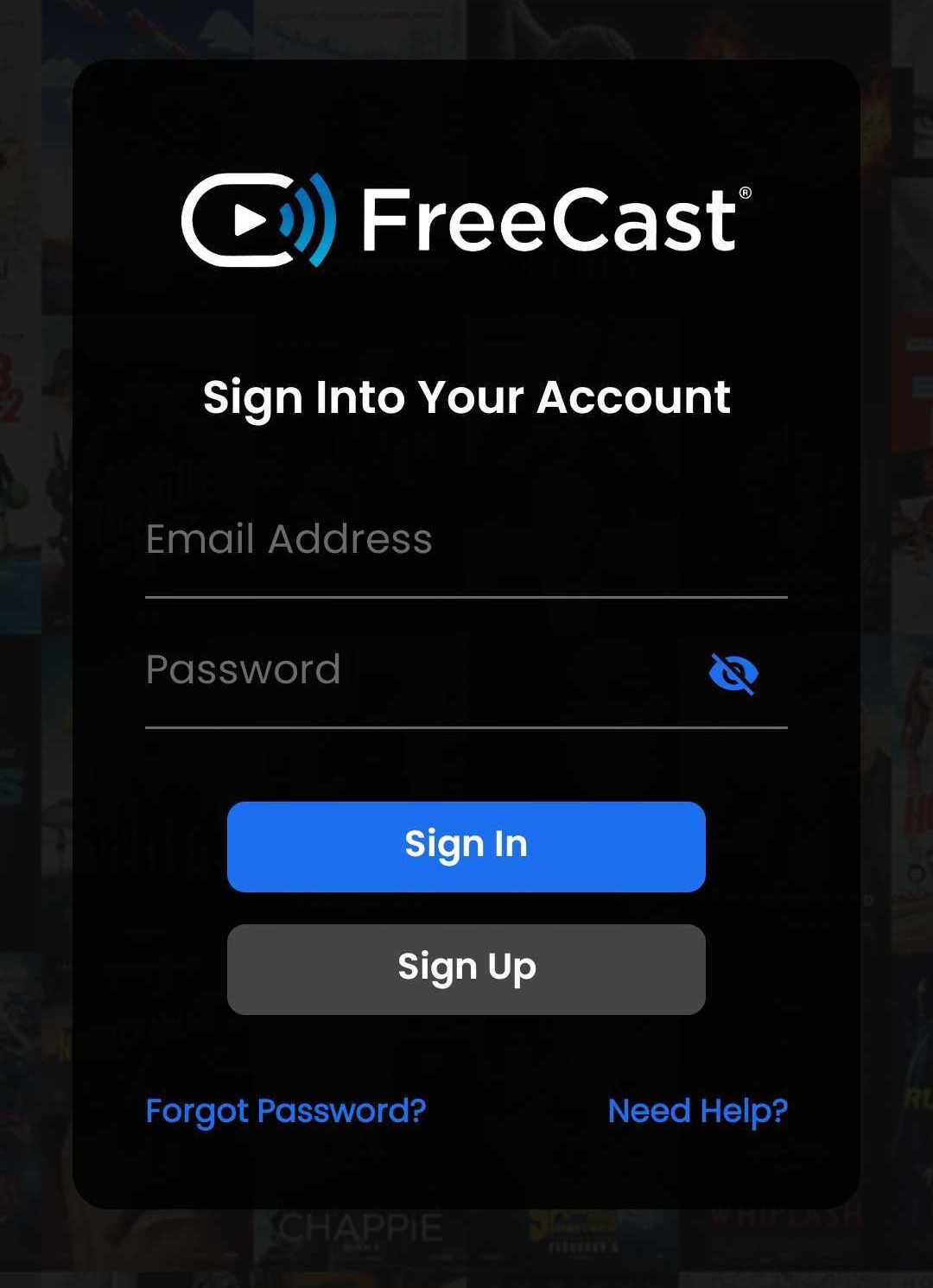
- Enter your registered username/email and password for FreeCast - or select Forgot Password? if you don't remember your login information.
- If you're still having trouble logging in, click here.
Smart TV or Streaming Device
- Open the FreeCast app on your Smart TV or streaming device - If you haven't already installed the app, visit the app store on your respective platform and search "FreeCast" (Android TV, Apple TV, Fire TV, Samsung TV, LG TV, Roku).
- Enter your registered username/email and password for FreeCast to sign in.
- You can also use the QR code login feature on most Smart TV platforms, if you don't want to manually enter your login credentials using your TV remote.
- Just select the Use Phone tab and then scan the QR code with the camera on your phone.
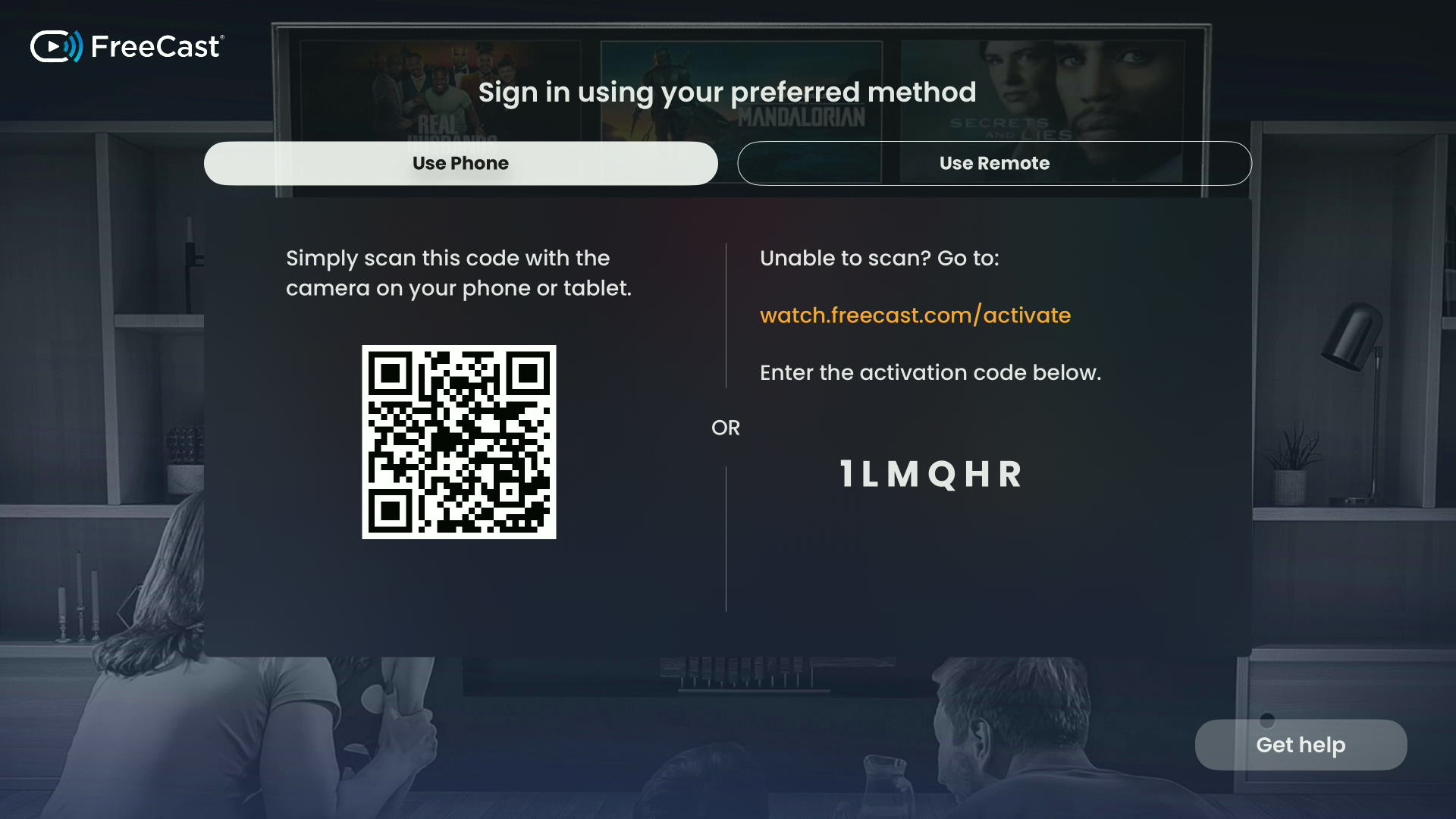
- Then enter the code that displays on your TV when the prompt appears on your phone.
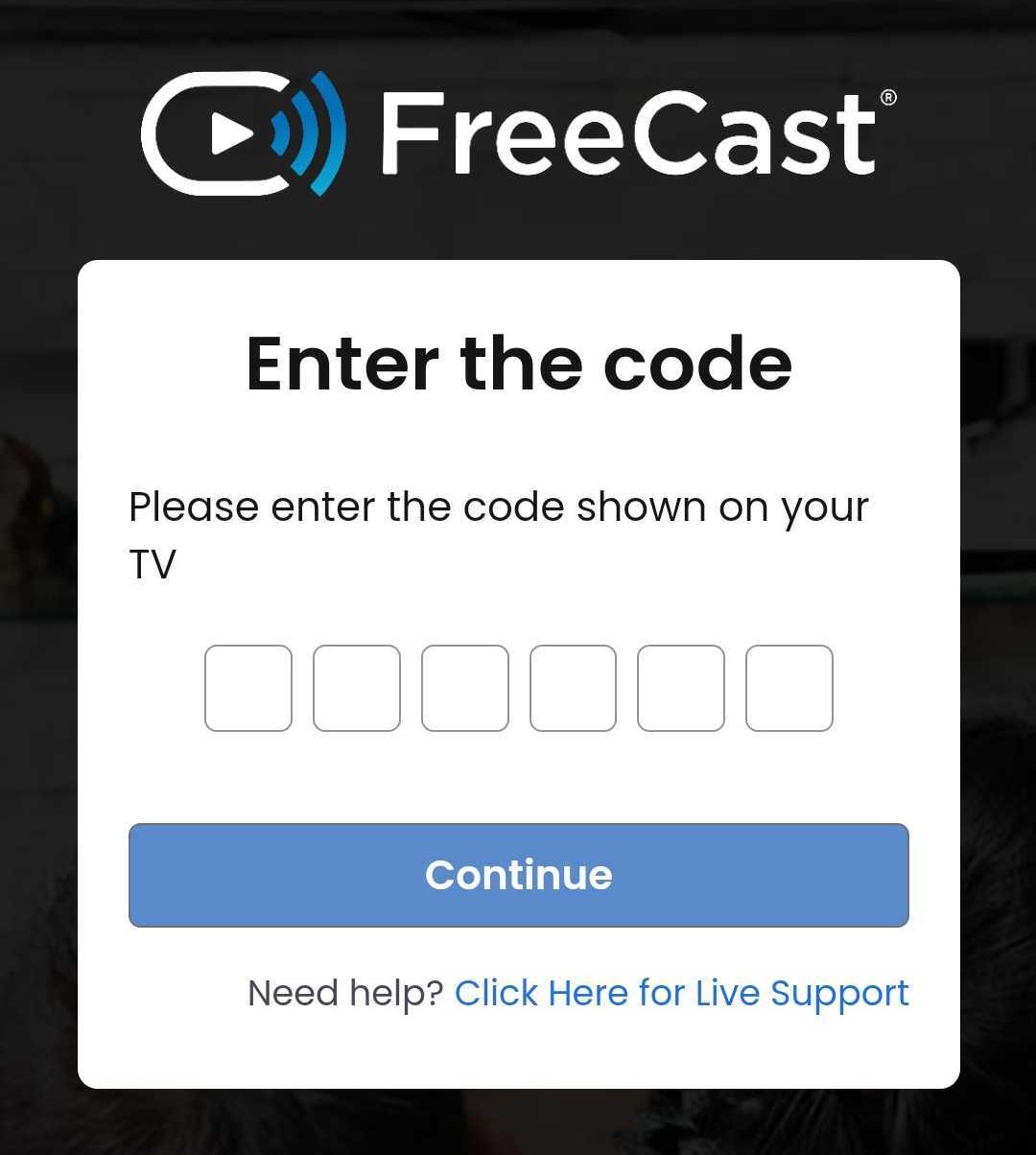
- Just select the Use Phone tab and then scan the QR code with the camera on your phone.
- If you're still having trouble logging in on your TV, click here.
Was this article helpful?
That’s Great!
Thank you for your feedback
Sorry! We couldn't be helpful
Thank you for your feedback
Feedback sent
We appreciate your effort and will try to fix the article